Internal Hard Drives
This guide contains links to products we track. When you purchase through our links, we may earn a commission at no extra cost to you. See our affiliate disclosure.
What You Need to Know
Internal hard drives are the backbone of most homelab storage builds. If you're running a network attached storage server (NAS), a media server, or any kind of bulk storage array, you're almost certainly shopping for 3.5" SATA drives. The good news is that the current crop of NAS and enterprise drives is genuinely reliable, the spec sheets are full of jargon designed for procurement teams, without meaningful context for homelabbers.
This guide breaks down the specs that actually matter, explains the trade-offs between product lines, and helps you avoid the mistakes that lead to data loss or wasted money.
CMR vs. SMR Recording
This is the single most important spec to check before buying a hard drive for any RAID or ZFS pool. Choosing the wrong recording technology can turn a routine array rebuild into a multi-day ordeal that puts your entire pool at risk.
Writes data tracks side by side without overlap. Reads and writes perform consistently because the drive doesn't need to shuffle data around.
Overlaps tracks like roof shingles for more density. Sequential writes are fine, but random writes force the drive to read and rewrite entire bands of overlapping tracks.
For a single backup drive sitting on a shelf, SMR is acceptable. For any member disk in a RAID, ZFS, or Unraid array, an SMR drive creates a bottleneck that effectively halts storage operations during rebuilds.
Community benchmarks on TrueNAS forums have measured resilver times of 14+ hours on CMR drives versus 9+ days on equivalent SMR drives. An SMR drive in a degraded RAID array keeps your data at risk for days instead of hours, and the constant rewriting during rebuild puts additional stress on the drive itself.
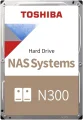
The rule is simple: use CMR for any RAID, ZFS, or multi-drive NAS setup. Every NAS-rated drive from the major manufacturers (WD Red Plus, Seagate IronWolf, Toshiba N300) uses CMR. Watch out for budget desktop lines, particularly at lower capacities.
Workload Rating
Every NAS and enterprise drive has a workload rating expressed in TB/year. This is the total amount of data (reads plus writes combined) the manufacturer guarantees the drive can handle annually without degraded reliability.
For most home NAS builds, 180 TB/year is more than enough. To put that in perspective, you'd have to transfer roughly 500 GB per day, every day, to hit that limit. A Plex server streaming to a few users, nightly backups, and occasional large file transfers won't come close.
If you're running a busy Plex server with heavy transcoding, hosting VMs with disk-intensive workloads, or running multiple concurrent users doing large transfers, step up to the Pro tier at 300 TB/year for the additional headroom.
Error Recovery (TLER/ERC)
NAS and enterprise drives include a feature called TLER (Time-Limited Error Recovery), also known as ERC (Error Recovery Control) on Seagate drives. When a drive encounters a bad sector, it limits recovery attempts to about 7 seconds before reporting the error back to the RAID controller.
Desktop drives don't have this limit. They'll keep retrying for 30 seconds or longer, during which the drive goes unresponsive. A hardware RAID controller will interpret that silence as a dead drive and drop it from the array, degrading your pool because of a single bad sector that TLER-equipped firmware would have reported and moved past in seconds.
Software RAID (ZFS, mdadm, Unraid) is more forgiving since it manages its own timeouts, but TLER still helps by keeping the drive responsive and letting the filesystem handle error recovery at a higher level.
WD calls their implementation NASware 3.0 (Red Plus/Pro) and Seagate calls theirs AgileArray (IronWolf). Both include TLER along with firmware tuning for 24/7 operation and multi-bay vibration handling.
Vibration and Multi-Bay Performance
Drives in a multi-bay NAS enclosure vibrate, and that vibration gets worse as you add more drives. Rotational vibration (RV) sensors in NAS-class drives detect this vibration and adjust head positioning in real time to maintain accurate reads and writes.
Desktop drives lack RV sensors, which is fine when a drive operates in isolation inside a single-bay USB enclosure. In an 8-bay rack-mounted NAS, the accumulated vibration from seven neighbors can cause an uncompensated drive to produce read errors, increase retry rates, and slow throughput to a fraction of its rated speed.
The IronWolf Pro line adds enhanced vibration tolerance compared to standard IronWolf, making it a better fit for enclosures with 8+ bays. WD Red Pro drives have similar improvements over the Red Plus.
NAS Drives vs. Enterprise Drives
The homelab community is split on this question, and the answer depends on your priorities.
Designed for always-on home NAS systems. Tuned for lower noise and power consumption. 3-year warranties. The safe default for 2-8 bay builds. Examples: WD Red Plus, Seagate IronWolf, Toshiba N300.
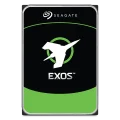
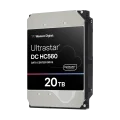
Built for 24/7 heavy load. 550 TB/year workload, 2.5M hour MTBF, 5-year warranties. Backblaze reports AFRs well under 1% for top models. Examples: WD Ultrastar, Seagate Exos, Toshiba MG series.
The trade-off is noise and heat. Enterprise drives run at 7,200 RPM with aggressive seek behavior optimized for throughput, not acoustics. Four Ultrastar drives in a desktop NAS on your desk will produce a constant low drone punctuated by sharp seek clicks that NAS drives are specifically tuned to minimize. If your NAS lives in a closet or a garage rack, enterprise drives are a strong choice. If it sits in a living space, WD Red Plus and IronWolf drives are noticeably more livable in both idle hum and seek noise.
Enterprise drives show up on the used market from datacenter decommissions, often at 40-60% below retail pricing. The risk is unknown usage history and no manufacturer warranty — buy from sellers who provide SMART data and return policies.
RPM, Cache, and Performance
Most NAS drives run at either 5,400 RPM or 7,200 RPM. WD's labeling here has been confusing: the Red Plus line was marketed as "5,400 RPM class" for years before WD corrected the spec sheets to reflect that 8TB+ models actually spin at 5,640 RPM, and 10TB+ at 7,200 RPM.
For NAS workloads, RPM is a secondary concern. Sequential throughput on modern drives consistently hits 180-285 MB/s regardless of spin speed, and your network interface, likely gigabit or 2.5GbE, is the real bottleneck. RPM only makes a practical difference in random access latency and how long you'll spend waiting for a degraded array to resilver.
Cache sizes range from 64MB on small-capacity drives up to 256-512MB on larger models. More cache helps with bursty workloads and write coalescing, but in a NAS context where the operating system and filesystem maintain their own write caches, the on-drive cache is rarely the deciding factor between two drives.
Shucking External Drives
Shucking is the practice of removing an internal hard drive from an external USB enclosure and using it directly via SATA in your NAS or server. It's one of the most popular cost-saving strategies on r/DataHoarder and r/homelab because external drives are often priced significantly lower than their bare internal equivalents, sometimes 30-50% cheaper per TB during sales.
Which Externals to Buy
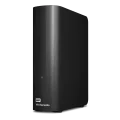
The WD Elements Desktop is the community's go-to shucking target. The drives inside are WD white-label models manufactured on the same production lines as WD Red Plus NAS drives, just with a different sticker. All capacities use CMR, and the USB bridge has no hardware encryption, so the drive works immediately when connected via SATA.
The WD Easystore (Best Buy exclusive) contains the same white-label drives as Elements. Buy whichever is cheaper. Both enclosures open non-destructively with guitar picks or plastic pry tools; four rubber blocks hold the drive in a frame that slides out.
Avoid WD My Book externals for shucking. My Book enclosures use hardware encryption on the USB bridge. The SATA interface itself is unencrypted, so a shucked drive works fine for new data, but any data written while in the USB enclosure becomes inaccessible without the original bridge board.
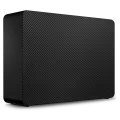
Seagate Expansion Desktop drives are often cheaper per TB, but carry SMR risk at lower capacities. The BarraCuda drives inside are SMR at 4TB and 8TB. Only shuck Seagate externals at 10TB and above to guarantee CMR. Seagate drives don't have the 3.3V pin issue (see below), which is a minor convenience.
Pre-Shuck Testing
Before opening the enclosure, connect via USB and run CrystalDiskInfo (Windows) or smartctl (Linux/macOS). Both can read through the USB bridge to identify the internal drive model, serial number, and SMART health data. Run a surface scan to check for bad sectors. If anything looks off, return the drive under the external product warranty before you shuck it.
Warranty Considerations
WD has historically honored warranty claims on shucked drives if you put the drive back in its matching enclosure (same serial number), but this is informal goodwill, not policy. External drive warranties are typically 2 years versus 3-5 years for retail NAS or enterprise drives. Seagate explicitly voids warranty on shucked drives.
The community consensus: treat shucked drives as having zero warranty. The 30-50% savings are the trade-off. Redundancy and backups protect you better than warranty claims anyway.
The 3.3V SATA Pin Issue
This is the most common gotcha when shucking WD drives. Pin 3 on the SATA power connector was repurposed in the SATA 3.3 spec to carry a "Power Disable" signal. Most consumer PSUs send 3.3V on this pin, which WD white-label and Ultrastar drives interpret as "stay powered off." The drive won't spin up, won't be recognized by BIOS, and won't make a sound. It looks completely dead.
Apply a small strip of Kapton tape (heat-resistant polyimide, a few dollars on Amazon) over the third pin on the drive's SATA power connector. Blocks the 3.3V signal. Safe, reversible, and the most popular community fix.
Molex connectors don't carry 3.3V, so a Molex-to-SATA power adapter bypasses the issue entirely. Use only crimped adapters — cheap molded Molex-to-SATA adapters are a known fire hazard.
Seagate drives and purpose-built NAS drives (Red Plus, IronWolf) aren't affected. Some newer PSUs and NAS backplanes don't supply 3.3V on SATA at all, making the issue moot — check your hardware specs before assuming you need a fix.
What to Buy
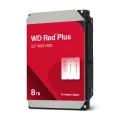
For a 2-4 bay desktop NAS (Synology, QNAP, TrueNAS Mini), the WD Red Plus or Seagate IronWolf are the standard recommendation. Both use CMR, carry 180 TB/year workload ratings, and include NAS-optimized firmware. WD tends to run quieter; Seagate often comes in slightly cheaper per TB at higher capacities. Toshiba N300 is the budget pick with competitive specs but less community track record.
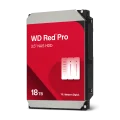
For a rack-mounted NAS with 8+ bays, step up to WD Red Pro or Seagate IronWolf Pro. The 300 TB/year workload rating, enhanced vibration tolerance, and 5-year warranty justify the premium in a denser enclosure.
For maximum capacity on a budget, used enterprise drives (WD Ultrastar, Seagate Exos) from reputable sellers offer the best $/TB. Factor in the higher noise levels and lack of manufacturer warranty when deciding whether the savings justify the trade-offs for your environment.
For ZFS pools specifically, stick with CMR drives and buy identical models for each vdev. Mixing drive models in a vdev works but complicates troubleshooting and can lead to uneven performance during resilvers.
Ready to compare options? Browse all Internal Hard Drives with filtering by brand, capacity, and price.
Products Mentioned in This Guide