External Hard Drives
This guide contains links to products we track. When you purchase through our links, we may earn a commission at no extra cost to you. See our affiliate disclosure.
Why External Drives Matter for Homelabs
External hard drives fill two critical roles in a homelab: they're the cheapest way to buy high-capacity storage (thanks to shucking), and they're the simplest offsite backup medium for a 3-2-1 strategy. A single USB desktop drive sitting at a friend's house or in a fire safe protects against the one scenario RAID can't: total site loss.
The external drive market is dominated by WD and Seagate, with a few clearly distinct product lines that look interchangeable on the shelf but behave very differently when you open the enclosure or plug one into a NAS USB port. The differences that matter are what's inside the enclosure, whether the USB bridge encrypts your data, and how the warranty works.
Desktop vs. Portable Drives
External drives come in two physical formats, and the choice between them determines your maximum capacity, transfer speed, and how you'll use the drive.
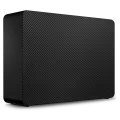
Requires a wall power adapter. Available up to 28TB. Contains standard 3.5" SATA drives identical to what goes in a NAS. Shuckable for internal use.
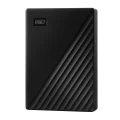
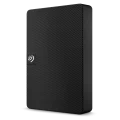
Bus-powered via USB. Tops out at 5-6TB. Uses 2.5" laptop drives. Too small and slow for serious NAS shucking, but perfect for offsite backup rotation.
For homelab use, desktop externals are the default. They hold more data, cost less per TB, and contain the same CMR drives you'd buy bare for your NAS. Portable drives have a narrower role: toss one in a bag for monthly offsite backup swaps, or keep one in a fireproof safe as a cold spare.
What's Inside the Enclosure
Every desktop external drive is just a standard 3.5" SATA hard drive connected to a USB-SATA bridge board inside a plastic shell. The brand on the outside tells you almost nothing about the drive inside. What actually matters is which internal drive model you get and whether the bridge board encrypts data.
Western Digital
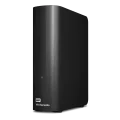
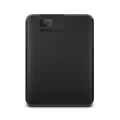
WD Elements Desktop and WD Easystore contain the same white-label drives. WD manufactures these on the same production lines as their Red and Ultrastar models. The 12TB and 14TB models (WD120EMFZ, WD140EDFZ) are helium-filled CMR drives. All capacities 8TB and above use CMR. Neither Elements nor Easystore encrypts data on the USB bridge, so shucked drives are immediately readable via SATA.
The Easystore is a Best Buy exclusive and is functionally identical to the Elements. Buy whichever is on sale.
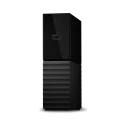
WD My Book is the trap. My Book enclosures apply AES 256-bit hardware encryption on the USB bridge. The SATA interface on the bare drive is unencrypted, so a shucked My Book drive works fine for writing new data. But any data written while the drive was in the My Book enclosure is encrypted and can only be read through that specific bridge board. If the enclosure's electronics die, your data goes with them.
Don't buy WD My Book for shucking or as a primary backup drive. If the USB bridge fails, you need the exact same bridge board to decrypt your data. Data recovery services can sometimes swap bridge boards, but it's expensive and not guaranteed. Elements and Easystore don't have this problem.
Seagate
Seagate Expansion Desktop drives contain BarraCuda models. The critical detail: BarraCuda drives at 8TB and below use SMR recording. At 10TB and above, they switch to CMR. If you're buying for a NAS or for shucking into a RAID pool, stick to 10TB+ Expansion drives to guarantee CMR.
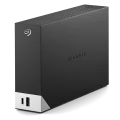
The Seagate One Touch Hub carries a higher workload rating (180 TB/year vs. the Expansion's 55 TB/year) and adds a front-facing USB hub for daisy-chaining devices. It costs 15-20% more per TB. For a drive that just sits on a shelf as a backup target, the extra workload headroom is wasted money. The One Touch Hub makes more sense as a permanently connected secondary drive on a desk or as USB-attached NAS storage.
Seagate externals don't apply hardware encryption on the bridge, so shucked drives are readable without any extra steps. Seagate drives also aren't affected by the 3.3V SATA pin issue that hits WD white-label models.
Shucking External Drives
Shucking is the practice of removing a hard drive from its external USB enclosure and connecting it directly via SATA in a NAS or server. It's one of the most popular cost-saving strategies on r/DataHoarder because external drives are frequently priced 30-50% lower per TB than their bare internal equivalents, especially during holiday sales.
Best Drives to Shuck
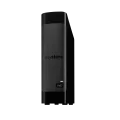
The WD Elements Desktop is the community's top shucking target. The internal white-label drives are manufactured on the same lines as WD Red and Ultrastar models, just with a different sticker. All capacities 8TB and above use CMR, and the USB bridge has no hardware encryption, so the drive works immediately when connected via SATA.
The WD Easystore contains identical drives. Both enclosures open non-destructively with guitar picks or plastic pry tools: four rubber bumpers hold the drive in a plastic sled that slides out.
Seagate Expansion Desktop drives are often cheaper, but only shuck 10TB and above to guarantee CMR. The BarraCuda drives inside 4TB and 8TB models use SMR. On the plus side, Seagate drives don't have the 3.3V SATA pin issue, so they're truly plug-and-play after shucking.
Pre-Shuck Testing
Before opening the enclosure, connect via USB and run CrystalDiskInfo (Windows) or smartctl -a (Linux/macOS). Both can read through the USB bridge to pull the internal drive model, serial number, and full SMART data. Run a surface scan to catch bad sectors. If anything looks wrong, return the drive under the external warranty before you open it.
The 3.3V SATA Pin Issue
Pin 3 on the SATA power connector was repurposed in the SATA 3.3 spec to carry a "Power Disable" signal. Most consumer PSUs and older NAS backplanes send 3.3V on this pin, which WD white-label drives interpret as "stay powered off." The drive won't spin up, won't appear in BIOS, and will look completely dead.
A small strip of Kapton tape (heat-resistant polyimide) over the third SATA power pin blocks the 3.3V signal. Costs a few dollars, takes 30 seconds, and is fully reversible.
Molex connectors don't carry 3.3V. Use only crimped adapters. Cheap molded Molex-to-SATA adapters are a documented fire hazard.
Seagate drives and retail NAS drives (Red Plus, IronWolf) aren't affected by this. Some newer PSUs and NAS enclosures (most recent Synology models) don't supply 3.3V on SATA at all.
Warranty After Shucking
WD has informally honored warranty claims on shucked drives if you reinstall the drive in its original enclosure (matching serial number), but this isn't official policy. External drive warranties are typically 2 years versus 3-5 years for retail NAS or enterprise drives. Seagate explicitly voids warranty on shucked drives.
The community consensus: treat shucked drives as having zero warranty. The 30-50% savings per TB are the trade-off. Redundancy and backups protect your data better than warranty claims.
Backup and Offsite Storage
The 3-2-1 backup rule calls for three copies of your data, on two different media types, with one copy offsite. External drives are the most practical offsite medium for homelabbers who don't want to pay for cloud storage on multi-terabyte datasets.
Desktop Drives for Backup
A WD Elements Desktop or Seagate Expansion Desktop plugged into your NAS's USB port is the simplest backup target. Synology's Hyper Backup, TrueNAS replication tasks, and Unraid's backup plugins all support USB destinations natively. Schedule a weekly incremental backup, then physically disconnect the drive and store it somewhere separate from the NAS.
For true offsite rotation, buy two drives. Keep one connected for active backups and one at a friend's house, office, or bank safe deposit box. Swap them monthly. Two 14TB externals cost less than a year of cloud storage for the same amount of data.
Portable Drives for Offsite Rotation
If your critical data fits in 5TB or less, a portable drive is easier to rotate offsite. The WD Elements Portable and Seagate Expansion Portable are bus-powered and pocket-sized. No encryption on the bridge, no power adapter to lose. The WD My Passport adds hardware encryption, which is actually useful for an offsite backup drive that might get lost or stolen, but remember that you'll need the WD software or password to access data if you move the drive to a different machine.
Encrypt your offsite backups. A drive sitting in someone else's house or a bank box should be encrypted at the filesystem level (LUKS, BitLocker, or your NAS backup software's built-in encryption), not just relying on the drive's hardware encryption. This way, you control the keys regardless of which enclosure or machine reads the drive.
USB-Attached NAS Storage
Most consumer NAS boxes (Synology, QNAP, TerraMaster) have a rear USB 3.0 port that can mount an external drive as a shared folder or backup target. This is a cheap way to add expansion storage without buying additional drive bays, but there are real limitations.
USB 3.0 tops out at roughly 150-180 MB/s in practice with spinning drives, which is comparable to a single SATA link. That's fine for backup jobs, file serving to a few users, or cold archive access. It's not fine for running VMs, databases, or anything that needs random IOPS, since the USB bridge adds latency that kills small-block performance.
Synology and QNAP don't support including USB drives in a storage pool or RAID array. The drive mounts as a standalone ext4 or exFAT volume. Unraid is more flexible, allowing USB drives in the array, but the community generally advises against it due to disconnect risks.
What to Buy
For shucking into a NAS or server, the WD Elements Desktop or WD Easystore at 12TB+ are the default recommendation. CMR white-label drives, no encryption, proven track record across thousands of DataHoarder builds. Wait for sales; these drop to excellent $/TB during Black Friday, Prime Day, and random Best Buy promotions.
For budget shucking, the Seagate Expansion Desktop at 10TB+ is often cheaper per TB than WD. No 3.3V pin fix needed. Just make sure you're buying 10TB or above to avoid SMR drives.
For USB backup attached to a NAS, any of the above desktop drives work. The Seagate One Touch Hub adds a USB hub if you need to daisy-chain, but the premium isn't worth it for most setups.
For offsite backup rotation, a WD Elements Portable or Seagate Expansion Portable at the largest capacity that fits your critical data. Bus-powered, no encryption complications, cheap enough to buy two for a rotation pair.
Ready to compare options? Browse all External Hard Drives with filtering by brand, capacity, and price.
Products Mentioned in This Guide