NVMe SSDs
This guide contains links to products we track. When you purchase through our links, we may earn a commission at no extra cost to you. See our affiliate disclosure.
What You Need to Know
NVMe SSDs have replaced SATA drives as the default storage for boot drives, VM hosts, and NAS caching in most homelab builds. They're faster, more compact, and increasingly cheaper per TB than their SATA counterparts. The catch is that the NVMe market is drowning in product lines, and the spec sheets are optimized for gaming marketing rather than the workloads homelabbers actually run.
This guide covers what the specs mean in practice, where the performance tiers actually matter, and which drives make sense for different homelab roles. If you're building a Proxmox host, adding a cache drive to TrueNAS, or just picking a boot SSD for a mini PC, the decision framework is the same.
PCIe Generations: Gen3, Gen4, and Gen5
NVMe SSDs connect through PCIe lanes, and the generation determines the maximum bandwidth. Each generation roughly doubles the theoretical ceiling of the previous one.
Those sequential numbers look dramatic, but they mostly show up in sustained large-file transfers: copying VM disk images, ingesting video footage, or migrating datasets between drives. For everyday responsiveness (boot times, app launches, random file access), the difference between Gen3 and Gen4 is single-digit percentages. Random 4K IOPS, which drive how snappy a system feels, haven't scaled proportionally across generations.
Gen5 drives are available from Samsung (9100 Pro), Crucial (T700, T705, T710), and Kingston (Fury Renegade G5). They're expensive, run hot enough to require heatsinks, and consume 8-11W compared to 5-6W for Gen4. For homelab use, Gen5 is hard to justify unless you're doing heavy VM storage I/O or large dataset work.
Gen4 is the sweet spot for homelabs. Mature controllers, reasonable thermals, excellent $/TB, and more speed than a gigabit or 2.5GbE NAS link can use. Gen3 drives are still perfectly adequate for boot drives and light NAS caching.
All generations are backward-compatible. A Gen4 drive works in a Gen3 slot at Gen3 speeds, and a Gen5 drive works in a Gen4 slot at Gen4 speeds. You'll never damage hardware by mixing generations.
Form Factors: 2280, 2230, and 22110
The numbers encode the drive's physical dimensions in millimeters: width x length. Most NVMe SSDs are M.2 cards that slot directly into a motherboard or adapter.
The default for desktops, laptops, NAS devices, and servers. If a spec sheet says "M.2 NVMe" without specifying size, it means 2280. The overwhelming majority of drives ship in this format.
Used in handhelds (Steam Deck, ROG Ally), Microsoft Surface devices, and some mini PCs. Fewer options and higher prices per TB. A 2230 drive works in a 2280 slot with a standoff repositioned or spacer added.
The 22110 (22 x 110mm) format shows up in some server motherboards and workstations. It's used by enterprise drives like the Micron 7450 Pro M.2 variants, which need the extra length for higher-capacity NAND packages. Check your motherboard specs before buying, as not all M.2 slots accept the longer 22110 cards.
Performance is identical across form factors. Speed depends on the interface generation and controller, not physical length. A 2230 Crucial P310 running Gen4 is just as fast as a 2280 P310 with the same controller and NAND.
DRAM Cache vs. DRAM-less
Every SSD maintains a Flash Translation Layer (FTL) that maps logical addresses to physical NAND locations. This mapping table runs about 1MB per TB of drive capacity. DRAM-equipped drives store this table in a dedicated DRAM chip (LPDDR4 or DDR4) on the drive itself. DRAM-less drives either keep it in the NAND (slow) or borrow a small slice of your system's RAM through a protocol called Host Memory Buffer (HMB).
The gap has narrowed significantly with modern HMB controllers. For typical consumer workloads, a well-designed DRAM-less drive like the WD Black SN770 performs within a few percent of DRAM drives in random read/write tests. The penalty only becomes visible under heavy random write loads with large working sets, the kind of pattern you'd see from a busy VM host running multiple concurrent virtual machines.
For NAS caching (especially ZFS SLOG) and VM storage with heavy concurrent writes, prefer DRAM drives. For boot drives, general storage, and NAS read caching (L2ARC), DRAM-less HMB drives are fine. Don't overspend on DRAM for a drive that just boots your Proxmox host.
TLC vs. QLC NAND
NAND flash cells store data by trapping electrons at different voltage levels. TLC (Triple-Level Cell) stores 3 bits per cell, and QLC (Quad-Level Cell) stores 4 bits per cell. More bits per cell means more capacity from the same silicon, which translates to lower cost. The trade-off is endurance and sustained write performance.
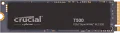
Every modern consumer SSD uses an SLC write cache, a portion of the NAND that temporarily operates in single-bit-per-cell mode for fast burst writes. Performance is great until the cache fills, at which point the controller has to write directly to the underlying TLC or QLC cells. TLC drives slow down modestly. QLC drives can drop to a fraction of their rated speed. A Crucial P3 Plus writing a 200GB VM image will start fast and then crawl once it exhausts its cache, while a Crucial T500 maintains much more consistent throughput.
For Proxmox or ESXi VM storage, TLC is the safer choice. QLC drives like the P3/P3 Plus and P310 are good options for read-heavy workloads, bulk cold storage on NVMe, or secondary drives where endurance and sustained writes aren't concerns.
NVMe for NAS Caching
Adding an NVMe drive to a NAS can accelerate read or write performance without replacing your spinning rust. The implementation varies by platform, and the requirements for each cache type are different.
ZFS (TrueNAS, Proxmox)
L2ARC (read cache) extends your in-memory ARC cache to the NVMe drive. It's most useful when your ARC hit rate drops below roughly 90% and you've already maxed out your RAM. One catch: L2ARC consumes about 80 bytes of system RAM per cached block to maintain its index. On systems with limited RAM, adding L2ARC can actually reduce available ARC capacity. Endurance requirements are moderate since reads dominate. Any decent TLC or QLC drive works here.
SLOG (write intent log) accelerates synchronous writes, the kind generated by NFS, databases, and VM storage. This is where drive quality matters most. TrueNAS documentation recommends drives with low latency, high endurance, and ideally power-loss protection (PLP). Enterprise drives with capacitor-backed caches are the proper choice for SLOG. Consumer drives work but carry a risk of data loss during unexpected power failures.
Special vdev (metadata) stores ZFS metadata on fast storage, which can significantly improve pool performance for operations that traverse the filesystem tree. This is a newer ZFS feature and increasingly popular for pools with many small files.
Synology and Unraid
Synology supports NVMe read/write caching through M.2 slots on compatible models. Write caching requires two NVMe drives in RAID 1 for redundancy. Third-party drives work, though Synology pushes their own branded drives. Unraid uses NVMe as a cache pool where writes land before the mover transfers data to the array on a schedule. Any NVMe drive works for Unraid caching, but TLC with DRAM is preferred for reliability.
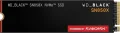
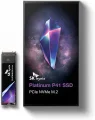
Best NAS caching drives: Crucial T500 (Gen4, DRAM, TLC, solid endurance), SK Hynix Platinum P41 (Gen4, DRAM, TLC, power efficient), or WD Black SN850X (Gen4, DRAM, TLC). For ZFS SLOG specifically, enterprise drives with PLP (Micron 7450 Pro, used Intel Optane) are the right answer.
Consumer vs. Enterprise NVMe
Enterprise NVMe drives differ from consumer models in three areas that matter for homelabs: endurance, sustained write consistency, and power-loss protection.
Typically 0.3 DWPD (Drive Writes Per Day) with 600 TBW at 1TB. Sustained writes degrade after the SLC cache fills. No power-loss protection. 5-year consumer warranty.
1-3 DWPD with 1,200-2,400+ TBW. Maintains ~90% write speed after 30 minutes of sustained writes. Capacitor-backed power-loss protection. 5-year warranty designed for 24/7 operation.
For most homelab roles, consumer drives are fine. A boot drive for Proxmox, a cache drive for Unraid, or general VM storage won't come close to exhausting 600 TBW in five years. Enterprise drives make sense for ZFS SLOG devices (where PLP prevents data loss during power failures), database-heavy workloads with constant writes, and VM hosts running many concurrent VMs with high I/O.
Used enterprise NVMe drives from datacenter decommissions show up on eBay at strong discounts. Intel P5510, Samsung PM9A3, and Micron 7450 Pro drives with plenty of remaining endurance often sell for under $100/TB. Check the SMART data for percentage used and total bytes written before buying.
Heatsinks and Thermals
NVMe controllers start thermal throttling around 70-80°C, progressively reducing bandwidth to bring temperatures down. Whether you need a heatsink depends on the drive's generation and how hard you're pushing it.
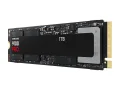
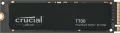
Gen5 drives need heatsinks. Phison has stated that all E26-based Gen5 drives (which includes the Crucial T700 and T705) are designed to be used with active or passive cooling. They draw 8-11W under load and will throttle within minutes without airflow. Samsung and Crucial sell heatsink variants of their Gen5 drives for this reason.
Gen4 drives are less demanding. A drive used as a boot disk or NAS cache rarely sustains enough load to throttle, even without a heatsink. For sustained write workloads (VM storage, video editing, large dataset processing), a heatsink helps. The motherboard-included M.2 heatsinks that ship with most modern boards are typically sufficient.
Gen3 drives rarely need cooling. They operate in the 45-50°C range under typical loads.
Drives inside NAS enclosures or mini PCs with restricted airflow benefit most from heatsinks, since passive convection alone may not keep temperatures in check. If your M.2 slot sits under a GPU or in a poorly ventilated corner of the case, add a heatsink regardless of generation.
What to Buy
For a Proxmox or ESXi boot drive, you don't need much. A 500GB or 1TB DRAM-less Gen4 drive handles the OS, ISO storage, and a handful of small VM disks. The WD Black SN770 is the value pick here: TLC NAND, 600 TBW, and Gen4 speeds at budget pricing. The WD Blue SN580 costs slightly less and is equally adequate for a boot-only role.
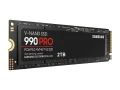
For VM storage where you're running multiple concurrent VMs with real I/O demands, step up to a DRAM-equipped TLC drive. The Samsung 990 Pro, Crucial T500, and SK Hynix Platinum P41 are all excellent choices in this tier. The P41 is particularly appealing for always-on homelab systems thanks to its lower power consumption. The Kingston Fury Renegade G5 often undercuts Samsung and Crucial on price while offering Gen5 speeds.
For NAS read caching (L2ARC, Synology read cache), endurance requirements are low since reads dominate. A QLC drive like the Crucial P3 Plus at 4TB delivers massive cache capacity at a fraction of the cost of TLC alternatives. Don't spend extra on features that a read cache doesn't exercise.
For NAS write caching (SLOG, Synology write cache, Unraid cache), use a DRAM-equipped TLC drive at minimum. The Crucial T500 is a strong default. For ZFS SLOG where data integrity during power loss is critical, an enterprise drive with power-loss protection (Micron 7450 Pro) is the correct answer.
For bulk NVMe storage at minimum cost, QLC drives like the Crucial P3 Plus offer the best $/TB in the NVMe market. Just understand the endurance and sustained write trade-offs. These drives excel as media storage, game libraries, or secondary storage tiers where you're mostly reading data.
Ready to compare options? Browse all NVMe SSDs with filtering by brand, capacity, and price.
Products Mentioned in This Guide