Desktop Memory
This guide contains links to products we track. When you purchase through our links, we may earn a commission at no extra cost to you. See our affiliate disclosure.
What You Need to Know
RAM is one of the few components where buying the wrong thing means it either won't physically fit in the slot or your system won't POST. Desktop memory (DIMM form factor) differs from laptop memory (SO-DIMM), and DDR4 and DDR5 are physically incompatible with each other. Your motherboard dictates which generation you can buy, so check that first.
Beyond compatibility, the specs that actually affect your homelab are capacity, speed, and whether the memory supports ECC. CAS latency, RGB lighting, and heat spreader design get the most marketing attention, but they're the least important factors for a server or workstation build.
DDR4 vs. DDR5
Your motherboard and CPU determine which generation you need. There is no adapter or workaround. Intel 12th/13th gen supported both (depending on the board), while 14th gen and newer are DDR5-only. AMD AM4 is DDR4; AM5 is DDR5. If you're building new, you're almost certainly on DDR5.
Tops out around 3600-4000MHz in practice. Proven, cheap, and widely available. Still the right buy if your platform supports it and you don't need more than 128GB.
Starts at 4800MHz, with mainstream kits at 5600-6000MHz. Higher bandwidth, lower voltage (1.1V vs 1.2V), and on-die ECC for internal chip stability (not a replacement for true ECC).
For homelab workloads like running VMs on Proxmox, serving files from TrueNAS, or hosting containers on Unraid, DDR4 at 3200MHz and DDR5 at 5600MHz perform nearly identically. The bandwidth difference only shows up in memory-intensive tasks like video encoding, large database queries, or running dozens of VMs that compete for memory bandwidth simultaneously.
DDR5's "on-die ECC" is not real ECC. It corrects errors inside the memory chip itself, but it doesn't protect data traveling between the chip and the CPU. For ZFS, TrueNAS, or any system where silent memory corruption matters, you still need actual ECC DIMMs on a platform that supports them.
How Much RAM Do You Need?
The answer depends entirely on what you're running. Here's a rough sizing guide based on common homelab software.
TrueNAS uses ARC (Adaptive Replacement Cache) to cache frequently accessed data in RAM. More RAM means a larger cache, which means faster reads for files you access often. The "1GB per TB" guideline is a starting point, not a hard requirement. A 40TB pool runs fine on 16GB, but performance improves noticeably at 32GB because the ARC has room to cache more.
Unraid itself needs under 1GB of RAM. Everything else goes to VMs, Docker containers, and disk cache. Proxmox has similarly low overhead, but each VM needs its own dedicated RAM allocation. Plan for the sum of your VM allocations plus 4-8GB for the hypervisor and overhead.
Buy in matched pairs (2x16GB, 2x32GB) to run in dual-channel mode. A single stick works, but you lose roughly 20-30% of memory bandwidth. Leave slots empty for future upgrades rather than filling all four slots with smaller sticks.
Speed and Latency
Memory speed is listed in MHz (DDR4) or MT/s (DDR5, which stands for megatransfers per second). CAS latency (CL) is the number of clock cycles the memory takes to respond to a read request. Both contribute to a metric called "first word latency," which is the actual time in nanoseconds before data arrives.
First Word Latency
Here's the thing that confuses people: DDR5 has higher CL numbers than DDR4, but that doesn't mean it's slower. The clock cycles are shorter because the frequency is higher. To calculate actual latency in nanoseconds:
Latency (ns) = (CL / Frequency in MHz) x 2000
For homelab workloads, the practical difference between CL16 and CL18 at the same frequency is undetectable. Server software, NAS operations, and containerized services are not sensitive to single-digit nanosecond latency differences. Gaming is where low CL matters most, and even there, the real-world impact is typically 1-5% in CPU-bound scenarios.
Don't pay a premium for lower CAS latency on a homelab build. A 32GB DDR4-3200 CL16 kit and a 32GB DDR4-3600 CL18 kit have identical real-world latency. Buy whichever is cheaper.
ECC Memory
ECC (Error Correcting Code) memory detects and corrects single-bit errors in RAM before they corrupt data. A cosmic ray, a voltage fluctuation, or normal silicon degradation can flip a bit in memory. Without ECC, that flipped bit gets written silently to disk. With ECC, the memory controller catches and fixes it.
Do You Need ECC?
The ZFS community is vocal about ECC, and the reasoning is sound: ZFS trusts that data in RAM is correct. If a bit flips in the ARC cache and ZFS writes that corrupted data to a mirror or parity stripe, the corruption is now permanent and replicated. ECC prevents this class of silent data corruption.
That said, the ZFS developers themselves have stated that ZFS doesn't need ECC any more than other filesystems do. Non-ECC systems run ZFS pools for years without issues. The risk is statistical, not guaranteed.
ZFS or btrfs pools storing irreplaceable data. Servers running 24/7 for months without rebooting. Systems with 64GB+ where the statistical odds of a bit flip increase with capacity.
Unraid arrays (no checksumming on parity). Proxmox hosts where VMs are disposable and rebuilt from config. Media servers where the source files exist elsewhere.
Platform Support
ECC support is a CPU and motherboard feature, not just a RAM feature. Intel consumer CPUs (Core i5/i7/i9) don't support ECC. Intel Xeon and some Xeon W processors do. AMD Ryzen technically supports unbuffered ECC on most AM4/AM5 boards, though motherboard vendors don't always validate it and BIOS support can be inconsistent. AMD PRO processors and EPYC fully support ECC.
If ECC is a hard requirement, verify your specific CPU and motherboard combination before buying. The motherboard QVL (Qualified Vendor List) is the most reliable source.
XMP and EXPO Profiles
RAM ships at a base JEDEC speed (DDR4-2133 or DDR5-4800) that's guaranteed to work on any compatible motherboard. The faster speeds advertised on the box (3200MHz, 6000MT/s, etc.) require enabling an overclocking profile in your BIOS.
Intel platforms call this XMP (Extreme Memory Profile). AMD platforms call it EXPO (Extended Profiles for Overclocking). ASUS boards relabel XMP profiles on AMD as "DOCP," and MSI calls them "A-XMP." They all do the same thing: load pre-tested voltage, speed, and timing settings from a chip on the RAM stick.
Enabling XMP/EXPO is a one-click operation in your BIOS. If you skip it, your DDR4-3200 kit runs at 2133MHz and your DDR5-6000 kit runs at 4800MT/s. That's a significant performance penalty for no reason.
Always enable XMP or EXPO in your BIOS after installing new RAM. It's tested by the manufacturer, stable on supported boards, and leaving it off wastes 30-50% of the bandwidth you paid for.
Corsair Product Lines
Corsair's desktop memory lineup has three tiers. The differences are primarily in heat spreader design, RGB lighting, and maximum overclocking headroom. The underlying memory ICs (chips) at the same speed and latency rating perform identically across tiers.
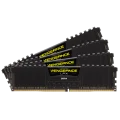
Vengeance LPX (DDR4 only)
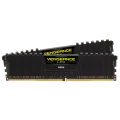
The Vengeance LPX is Corsair's no-nonsense DDR4 line. Low-profile aluminum heat spreader, no RGB, and the cheapest per-GB pricing in the lineup. The low height (34mm) clears most tower CPU coolers without conflict. For a homelab build or workstation where the side panel stays on, this is the right choice. Available from 16GB kits up to 128GB kits.
Vengeance (DDR5)
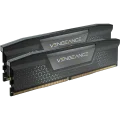
The Vengeance DDR5 carries over the same low-profile philosophy to DDR5. Clean heat spreader, no lighting, compact enough for any build. Speeds range from 5200MT/s to 6000MT/s+. A 32GB DDR5-6000 CL30 kit is the current sweet spot for DDR5 builds.
Vengeance RGB (DDR4 & DDR5)
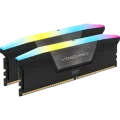
Same performance as the base Vengeance, with an RGB light bar on top. The RGB DDR5 kits are taller (44mm for DDR5) due to the light diffuser, which can interfere with some tower coolers. If aesthetics matter and your cooler has clearance, the price premium is small. If not, skip it.
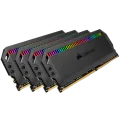
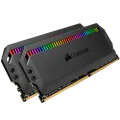
Dominator Platinum RGB (DDR4 & DDR5)
Corsair's premium line uses a patented DHX cooling system with a dual-chamber aluminum heat spreader. The Dominator Platinum RGB DDR4 and 64GB kits offer the same underlying memory performance as Vengeance LPX at the same specs. The premium buys better cooling (marginal benefit at stock speeds), a nicer heat spreader, and brighter RGB. At 56mm tall, Dominator sticks will block many tower coolers.
For a homelab or workstation, the Dominator tax isn't justified. For a gaming or showcase build, it's a visual upgrade.
What to Buy
For a DDR4 homelab or NAS build, a Vengeance LPX 32GB (2x16GB) DDR4-3200 CL16 kit is the default recommendation. It clears any cooler, runs at the DDR4 sweet spot, and leaves two DIMM slots open for a future upgrade to 64GB. If you need 64GB now, the 64GB (2x32GB) kit keeps the same two-stick configuration.
For a DDR5 build, the Vengeance DDR5 32GB (2x16GB) 6000MT/s CL30 hits the sweet spot. DDR5-6000 is where most AMD AM5 and Intel platforms perform best, and CL30 keeps real-world latency at 10ns, matching DDR4-3200 CL16.
For a Proxmox host running many VMs, start at 64GB (2x32GB). Two sticks of 32GB leaves room to double to 128GB later without replacing anything. If you already know you need 128GB, four sticks of 32GB fills the board.
For a gaming PC that doubles as a homelab, the Vengeance RGB DDR5 32GB 6000MT/s CL30 adds lighting at a small premium over the base Vengeance. Same performance, better aesthetics.
Ready to compare options? Browse all Desktop Memory with filtering by generation, speed, capacity, and price.
Products Mentioned in This Guide